
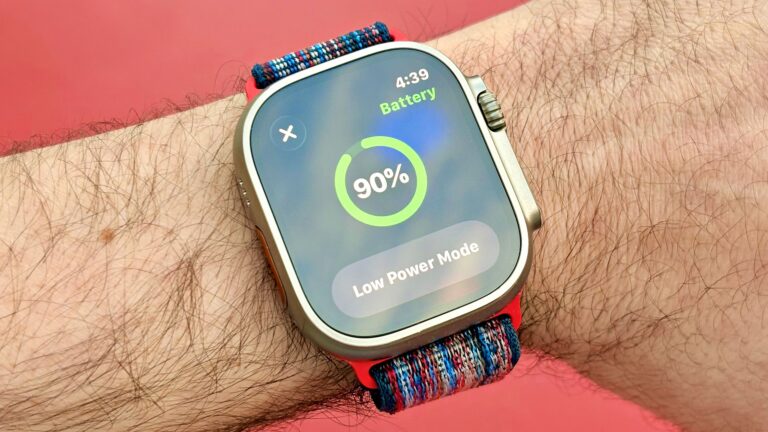
Apple makes some of the best smartwatches money can buy. However, battery life has never been the Apple Watch’s strong suit. The Series 11 lasts an average of 24 hours, the SE 3 lasts roughly 18 hours, and the Ultra 3 lasts about 42 hours per charge.
Looking to squeeze a little more juice? Apple’s low-power mode is one option. For example, on the Series 11, it can extend your battery life up to 38 hours per charge. The trade-off is that the handy features you paid for, like the always-on display and continuous heart rate monitoring, get disabled.
Rather than losing essential Apple Watch features, what follows are three settings you can change that won’t impact the user experience much but will noticeably improve your device’s battery life.
Best of all, you don’t need to own one of the best Apple Watches, i.e., the latest/greatest model. These battery life tips work for older models, too.
1. Turn off ‘Background app refresh’
The apps on your Apple Watch are constantly updating and/or refreshing with new content behind the scenes, which can lead to faster-than-normal battery drain, especially if you have loads of third-party ones.
For example, an app like AP News pulls in updates throughout the day so that when you open it, you see the newest headlines. Switching off background app refresh means that you may need to wait a few seconds for the freshest news to appear, but that’s a worthwhile trade-off for improved battery performance as far as I’m concerned.
To switch background app refresh off, head to the settings menu > general, and scroll down.
2. Turn on ‘Reduce motion’
Apple wants your experience operating the Apple Watch to be as smooth and seamless as possible. As a result, the user interface is chock-full of quick animations that make transitioning from one app to another, for example, a more visually appealing experience.
However, these animations are far from essential. Reduce motion switches them off, saving you battery. Moreover, I find the difference between motion on and off hardly noticeable, and I’m guessing you will too.
The reduced motion setting is located under the settings menu, followed by accessibility. Scroll about halfway down to toggle it.
3. Turn off ‘Optimize charge limit’
Last but not least, to ensure I get the best possible battery life out of my Apple Watch, I always turn off the “optimize charge limit” setting. This feature is designed to prevent your smartwatch from overcharging, which should in turn extend its long-term battery life.
However, optimizing the charge limit also cuts off charging at 80%, which isn’t ideal. To turn off the optimize charge limit setting, head to the settings menu > battery > battery life.
One note of caution: If you take my advice and switch it off to get that extra 20% juice, get in the habit of keeping an eye on your Apple Watch while it recharges. Leaving it unattended on a charger, especially overnight, could result in the need for a premature battery replacement.
Moreover, while older smartwatches take a few hours to fully juice up, the latest generations recharge from 0% to 100% in about an hour… so no excuses.
What are your favorite Apple Watch battery-saving tips? Let me know in the comments below.
Follow Tom’s Guide on Google News and add us as a preferred source to get our up-to-date news, analysis, and reviews in your feeds.
