
Your Pixel Watch can do things no other Android smartwatch can—don’t miss out


Not all Android smartwatches are created equal. The Pixel Watch has a few exclusive features that you won’t find on a Galaxy Watch or any other Wear OS device. If you have one on your wrist, you should be sure to know the benefits.

“At a Glance” on your watch face

The iconic Pixel widget is for watches, too

Pixel phones—more specifically, the Pixel Launcher—have long featured an ever-present widget on the home screen called “At a Glance.” It dynamically updates with relevant information, such as upcoming calendar events, flights, sports scores, travel times, and more. When nothing pertinent is happening, it defaults to weather information.

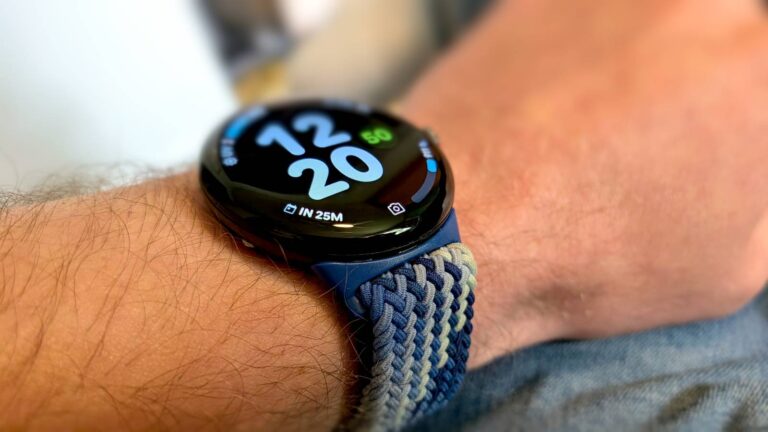
A slimmed-down version of this widget is available as a watch face complication on the Pixel Watch. It used to be restricted to the extra-wide complication slot, but now it can be added anywhere. The watch version of the widget mainly shows time until your next calendar event, reminders for when to leave for events, flight information, and weather. Simply choose “At a Glance” from the complication picker when customizing a watch face.

Use Gemini without wake commands or buttons

“Raise to Talk” to your digital assistant

There are multiple ways to launch Gemini on a Wear OS smartwatch. All devices can activate it by saying “OK Google” or mapping it to one of the hardware button shortcuts. The Pixel Watch 4 has one extra method: “Raise to Talk.”

The feature works essentially as it sounds. Rather than pressing a button or using a wake command, you can simply raise the Pixel Watch 4 to your face and start talking to Gemini. You’ll notice Gemini’s blue glow appear at the bottom of the screen when it’s ready to listen.

To enable, go to Settings > Gestures > Raise to Talk. Toggle it on and play around with the sensitivity settings for both the gesture and voice. You can even turn off the visual indicator if you’d like.

Pixel Watch 4

Heart Rate Monitor

Yes

Color Screen

Yes


Google Wallet Express Pay

Tap to pay even faster

On your phone, you can tap to pay by simply unlocking the screen—you don’t have to manually open the Google Wallet app. Historically, that’s not how it has worked for Wear OS devices. You were required to manually launch Google Wallet before tapping the terminal.

Earlier this year, the Pixel Watch improved this process with a feature called “Express Pay.” When enabled, you can tap to pay without opening Google Wallet first. Your Pixel Watch screen simply needs to be unlocked, which only needs to be done once every time you put it on your wrist.

Express Pay has to be enabled from the Pixel Watch app on your phone. Go to Google > Google Wallet > Select your default card > Express pay > Toggle it on and select “Tap to pay and transit.”

Full remote camera control

More than switching between photo and video

Most Wear OS devices have some sort of ability to remotely control the phone’s camera. With a Galaxy Watch and Galaxy phone, you can switch between photo or video mode, enable or disable the timer, and use the bezel to zoom in or out. That’s it, though.

Meanwhile, a Pixel Watch connected to a Pixel phone essentially has full access to the camera controls. You can switch between photo and video mode, swap from rear to front camera, adjust zoom, choose timer length, and select from various modes: Night Sight, portrait, slow motion, time lapse, and even cinematic blur for videos.

Most of these controls are accessible through the on-screen buttons, but swapping from front and rear cameras requires double-tapping the screen. That’s all there is to it.


Take advantage of your perks

“Exclusive” features weren’t always a part of Android smartwatches. There was a time when they all had the exact same interface and basic set of features (it was called “Android Wear”). When Samsung finally adopted Wear OS in 2021, the platform became more like Android on phones—manufacturer-specific features and UIs included. For better or worse, your Pixel Watch has advantages—use them.


Pixel 10 with glowing Google G logo


The 4 most useful Google Pixel features that aren’t enabled by default

Google takes a “minimal” approach to Pixel phones, but don’t make the mistake of thinking all the best features are all available right out of the box. There’s some good stuff just waiting to be discovered, and Google doesn’t do the best job of telling you about it.


Source link